Logging
This section describes how to use the geonetwork log files to find more details on incidents.
Customising the log file location
The default log file location is logs/geonetwork.log (with backups created
geonetwork-1.log, geonetwork-2.log,...).
It is possible to change the directory where these log files are generated
with a Java system property log_dir. The Java System property log_dir
is the name of a directory, and does not end with a /.
For the example -Dlog_dir=/var/tomcat/logs the files will be created in
/var/tomcat/logs/geonetwork.log, and will rotate through the filenames
/var/tomcat/logs/geonetwork-1.log,/var/tomcat/logs/geonetwork-2.log,...
To set the log_dir property, you can add it to the JAVA_OPTS in the startup
script of your servlet container. For example, if you are using Tomcat, you
can add it to the setenv.sh or setenv.bat file in the bin directory of
your Tomcat installation.
Details of some errors, such as XSL transformation errors, are not written to
geonetwork.log. They are written to a file called catalina.out (if
using Tomcat).
Setting the Loglevel
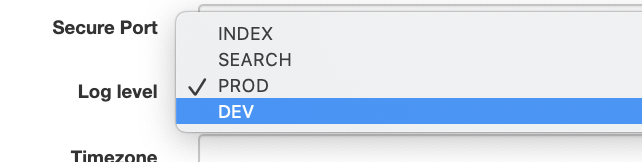
GeoNetwork by default has 5 log levels: PROD, INDEX, DEV, TEST, JSON.
- PROD is the default option, it will only log critical errors.
- INDEX is similar to PROD, but with extended logging around the indexation process.
- DEV is the most extended level, all debug messages will be logged.
- TEST is a simplified configuration useful for running tests, with fewer logger categories and a
warnroot level. - JSON outputs structured JSON logs suitable for log aggregation tools such as Elasticsearch/Kibana (ELK stack).
You can set the log level from the Admin → Settings page.
Log4j
GeoNetwork uses Apache Log4j2 for logging.
The log4j configuration files are located in the /WEB-INF/classes directory of the GeoNetwork web application:
log4j2.xml (PROD), log4j2-dev.xml (DEV), log4j2-index.xml (INDEX), log4j2-json.xml (JSON) and log4j2-test.xml (TEST).
Each configuration file defines which log levels apply to each logger module.
The file used is determined by the log level set in the Admin → Settings page.
Configuration structure
Each Log4j2 configuration file defines three appenders:
- Console — writes to
SYSTEM_OUT(stdout). - RollingFile (
File) — writes togeonetwork.login the log directory. - Harvester — a routing appender that writes to per-harvester log files (see Harvester logging).
The default PatternLayout format used by the Console and RollingFile appenders is:
Which produces output like:
Log file rotation
The RollingFile appender uses size-based rotation:
- Maximum file size: 10 MB per log file.
- Up to 3 backup files are kept, named
geonetwork.log-1.log,geonetwork.log-2.log,geonetwork.log-3.log. - When the current log file exceeds 10 MB, it is rolled over and the oldest backup is deleted.
Auto-discovery of configuration files
GeoNetwork scans /WEB-INF/classes for files matching the regex log4j2(-(.*?))?.xml. Any file that matches this pattern is automatically made available in the Admin → Settings log level dropdown. The matched group (e.g. dev from log4j2-dev.xml) is uppercased to form the display name. The base log4j2.xml without a suffix is displayed as PROD.
Harvester logging
Harvester logs are written to separate files via a Routing appender. Each harvester gets its own log file, dynamically named based on the harvester's thread context (ctx:logfile and ctx:harvester).
- The log file name is determined at runtime from the harvester context.
- If no specific context is set, logs go to
harvester_default.login the log directory. - Harvester log files use the
PatternLayoutwith timezone-aware timestamps: - Even when JSON logging is enabled, harvester logs continue to use plain-text
PatternLayoutsince they are consumed separately from the main log file.
Harvester logs must sit next to geonetwork.log
The Harvester history in Admin → Harvesting offers a log file download button for each
run. It locates the run's log file in the directory of the File appender attached to the
geonetwork logger. A configuration whose Harvester routing appender writes somewhere else,
or that omits the routing appender or the geonetwork logger altogether, makes that button
disappear without any visible error. When customising a log4j2-*.xml file, keep the File
and Harvester appenders pointing at the same directory.
Logger modules
The Log4j2 configuration files define logger categories that administrators can adjust. Each log level preset (PROD, INDEX, DEV, etc.) sets these loggers to different levels.
GeoNetwork loggers
The main GeoNetwork logger geonetwork controls the base level for all GeoNetwork modules. Submodule loggers inherit from it unless explicitly configured:
| Logger | Description |
|---|---|
geonetwork.accessmanager |
Access control and permissions |
geonetwork.atom |
ATOM feed support |
geonetwork.csw |
CSW service |
geonetwork.csw.search |
CSW search operations |
geonetwork.database |
Database operations |
geonetwork.databasemigration |
Database schema migration |
geonetwork.datamanager |
Metadata data manager |
geonetwork.editor |
Metadata editor |
geonetwork.editorexpandelement |
Editor element expansion |
geonetwork.editorfillelement |
Editor element filling |
geonetwork.encryptor |
Encryption services |
geonetwork.formatter |
Metadata formatter |
geonetwork.geoserver.publisher |
GeoServer layer publishing |
geonetwork.geoserver.rest |
GeoServer REST interactions |
geonetwork.harvester |
Harvester operations (also writes to harvester log files) |
geonetwork.harvest-man |
Harvester manager |
geonetwork.index |
Elasticsearch indexing |
geonetwork.ldap |
LDAP authentication |
geonetwork.mef |
MEF import/export |
geonetwork.schemamanager |
Metadata schema management |
geonetwork.search |
Search operations |
geonetwork.security |
Security framework |
geonetwork.thesaurus |
Thesaurus operations |
geonetwork.doi |
DOI registration |
geonetwork.engine |
Jeeves engine |
geonetwork.xlinkprocessor |
XLink resolution |
geonetwork.xmlresolver |
XML entity resolution |
Third-party loggers
| Logger | Description |
|---|---|
org.springframework |
Spring Framework (base) |
org.springframework.beans |
Spring bean wiring |
org.springframework.security |
Spring Security |
org.springframework.security.ldap |
Spring Security LDAP |
org.hibernate.SQL |
Hibernate SQL statements |
org.hibernate.type |
Hibernate type resolution |
org.hibernate.tool.hbm2ddl |
Hibernate schema generation |
org.jzkit |
JZKIT search toolkit |
org.apache.camel |
Apache Camel routing |
Log levels per preset
Each preset adjusts logger levels differently. As a general guide:
- PROD — most GeoNetwork loggers at
error, third-party aterror. Minimal output. - INDEX — similar to PROD, but
geonetwork.searchatwarnandgeonetwork.harvest-manatinfofor indexation monitoring. - DEV — most GeoNetwork loggers at
debug, Spring/Hibernate atdebug. Very verbose. - TEST — simplified configuration with fewer logger categories, root level at
warn. - JSON — same logger levels as PROD, but output format is JSON (see below).
JSON logging
The JSON log level uses log4j2-json.xml which replaces the default PatternLayout with Log4j2's JsonTemplateLayout. This produces structured JSON output on both the console and the rolling log file, making it suitable for ingestion by log aggregation tools such as the ELK stack (Elasticsearch, Logstash, Kibana).
Each log event is output as a JSON object with the following fields:
@timestamp— event timestamp in ISO 8601 formatlevel— log level (e.g. ERROR, INFO, DEBUG)loggerName— the logger that produced the eventmessage— the log messageexception— stack trace, if present
A sample JSON log line:
{"@timestamp":"2024-06-15T10:23:45.123+0000","level":"ERROR","loggerName":"geonetwork.index","message":"Failed to index record abc-123","exception":null}
To activate JSON logging, go to Admin → Settings and select JSON from the log level dropdown.
The JsonTemplateLayout is provided by the log4j-layout-template-json library which is included in GeoNetwork's dependencies. The event template is embedded inline in the log4j2-json.xml configuration file and can be customized directly to add or modify fields.
Harvester logs continue to use plain-text PatternLayout as they are consumed separately.
For log ingestion, you can point Filebeat or Logstash directly at the geonetwork.log file when JSON mode is enabled, since each line is a self-contained JSON object.
Custom log configurations
You can create your own log level preset by adding a new configuration file to /WEB-INF/classes/:
- Copy an existing configuration (e.g.
log4j2.xml) as a starting point. - Name the new file following the pattern
log4j2-<name>.xml(e.g.log4j2-debug-search.xml). - Adjust the logger levels as needed.
- Restart GeoNetwork (or wait for the configuration to be reloaded).
The new configuration will automatically appear in the Admin → Settings log level dropdown as <NAME> (uppercased from the filename suffix, e.g. DEBUG-SEARCH).
Log REST API
GeoNetwork provides REST endpoints for managing and viewing logs. All endpoints require Administrator role.
List available log configurations
Returns a JSON array of available log configuration files:
[
  {"name": "PROD", "file": "log4j2.xml"},
  {"name": "DEV", "file": "log4j2-dev.xml"},
  {"name": "INDEX", "file": "log4j2-index.xml"},
  {"name": "JSON", "file": "log4j2-json.xml"},
  {"name": "TEST", "file": "log4j2-test.xml"}
]
Get recent log activity
Returns the last n lines from the log file as plain text. Default is 2000 lines; maximum is 20000.
Download log file as ZIP
Downloads the current log file as a ZIP archive, named catalog-log-<timestamp>.zip.
Troubleshooting
Enable Log4j2 internal status logging
If log output is not appearing as expected, enable Log4j2's internal status logger to diagnose configuration problems. Set the status attribute on the <Configuration> element:
Alternatively, set the system property at startup:
This will output Log4j2's internal messages to the console, helping identify issues with appender configuration, missing files, or pattern errors.
XSL transformation errors
XSL transformation errors are not written to geonetwork.log. They are written to catalina.out (when using Tomcat). Check this file if you suspect issues with metadata formatting or schema processing.
Temporarily increase logging for a specific module
To debug a specific subsystem without increasing the global log level, edit the active Log4j2 configuration file and change only the target logger. For example, to debug search issues while keeping everything else at error:
Then switch to a different log configuration and back in Admin → Settings to reload, or restart GeoNetwork. Remember to revert the change after debugging.