Linking website, web services, ... using URL
This section applies mainly to ISO19139 records and partially to Dublin Core (ie. only documents can be associated in Dublin Core) standards.
Linking a document
2 approaches can be used to link documents:
- by providing a URL
- by uploading a document
To add a new one, click on the + caret button then Add an online resource button or, if already one exists, just click on the title of the Online resources.
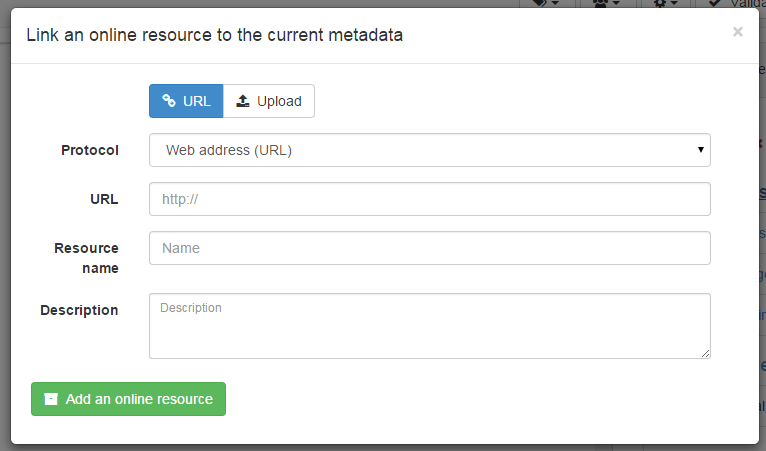
To link a URL, set the following properties:
Protocolto describe the type of document attached (Web address (URL)is the default)Linkageto point to the target document. It can be any type of links likehttp://,ftp://,file:///, ...Nameis optional and provides a label for making an hyperlinkDescriptionis optional and provides more details about the link
To upload a document, switch to the Upload tab and choose a document, or drag and drop it in the pop up. In that case, the protocol is hidden and is set to WWW:DOWNLOAD.
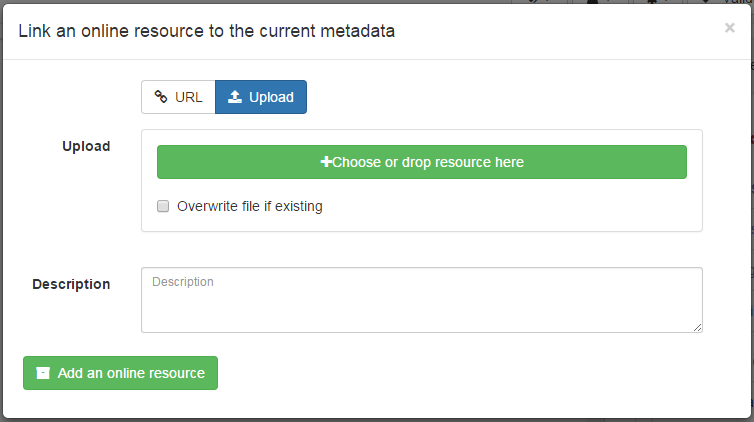
Depending on your needs, more specific links could be added and will be associated to different actions and display in the applications.
Linking a WMS layer
To be able to view a record on the map viewer, it may be relevant to add a reference to one or more WMS services publishing the dataset. An online resource is encoded using the following in ISO19139:
<gmd:onLine xmlns:gmd="http://www.isotc211.org/2005/gmd"
            xmlns:gco="http://www.isotc211.org/2005/gco">
   <gmd:CI_OnlineResource>
      <gmd:linkage>
         <gmd:URL>https://download.data.grandlyon.com/wms/grandlyon</gmd:URL>
      </gmd:linkage>
      <gmd:protocol>
         <gco:CharacterString>OGC:WMS</gco:CharacterString>
      </gmd:protocol>
      <gmd:name>
         <gco:CharacterString>cad_cadastre.cadsubdivisionsection</gco:CharacterString>
      </gmd:name>
      <gmd:description>
         <gco:CharacterString>Subdivision de section cadastrale (Plan cadastral informatisé du Grand Lyon)(OGC:WMS)</gco:CharacterString>
      </gmd:description>
   </gmd:CI_OnlineResource>
</gmd:onLine>
To add a WMS layer:
- choose the protocol
OGC:WMS Web Map Service, - set the URL of the service,
- then the wizard query the service to retrieve the list of layers
- choose one or more layer in the list or set it manually.
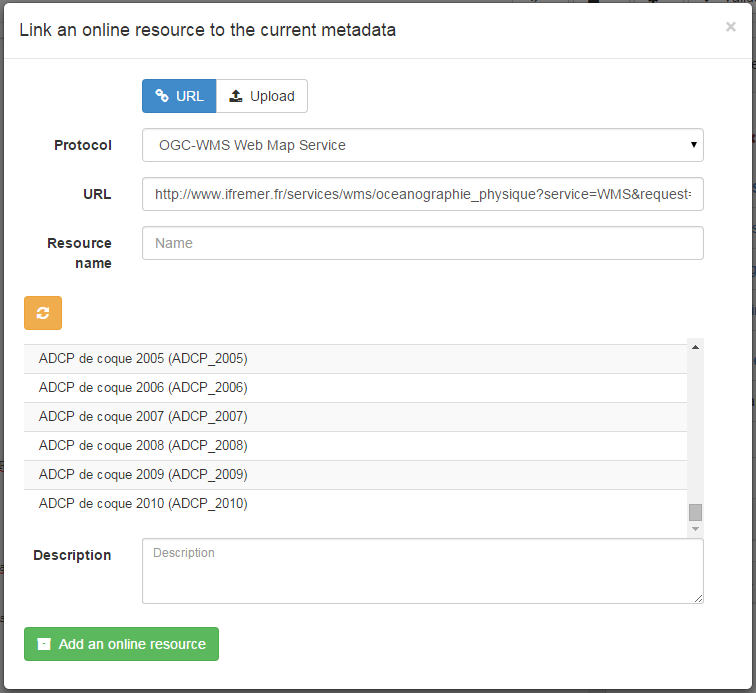
Configuring WMS layer name and description
When one or more WMS layers are selected, GeoNetwork automatically populates the online
resource Name and Description fields. The behaviour is controlled by the
wmsResources object in the schema's associated-panel configuration file:
schemas/iso19139/src/main/plugin/iso19139/config/associated-panel/default.json
"wmsResources": {
  "addLayerNamesMode": "resourcename",
  "resourceName": "layerName",
  "resourceDescription": "layerTitle"
}
addLayerNamesMode
| Value | Behaviour |
|---|---|
resourcename |
(default) The WMS layer Name (identifier) is stored in the online resource name field and the layer Title in the description field. resourceName and resourceDescription are ignored. |
url |
The fields populated in the online resource are controlled individually by resourceName and resourceDescription (see below). |
resourceName and resourceDescription (url mode only)
Both properties accept the same values:
| Value | WMS field used |
|---|---|
layerName |
The layer Name (machine identifier, e.g. cad_cadastre.cadsubdivisionsection) |
layerTitle |
The layer Title (human-readable label) |
Example — store the human-readable title as both name and description:
"wmsResources": {
  "addLayerNamesMode": "url",
  "resourceName": "layerTitle",
  "resourceDescription": "layerTitle"
}
Multilingual records
The two modes also differ in how multilingual records are handled:
resourcenamemode — only the current UI language is updated. Other language translations are left unchanged so the editor can manage them independently.urlmode — all configured languages are set to the same value, because WMS layer names and titles are language-neutral identifiers.
Linking a database table or a GIS file on the network
To reference a GIS file or a database table, user can upload or link to a that resource (see Linking a document). The type of protocol depends on the type of resource associated:
| Type of resource | Vector file uploaded (eg. zipped Shapefile) |
|---|---|
| URL | File URL created after upload on the catalog. eg. http://localhost:8080/geonetwork/srv/eng/resources.get?id=1631&fname=CCM.zip&access=private |
| Protocol | WWW:DOWNLOAD |
| Name | File name (readonly) |
| Type of resource | Vector file on the network |
|---|---|
| URL | File path. eg. file:///shared/geodata/world/hydrology/rivers.shp |
| Protocol | FILE:GEO or FILE:RASTER |
| Name | File description |
| Type of resource | Vector (Table PostGIS) |
|---|---|
| URL | jdbc:postgresql://localhost:5432/login:password@db |
| Protocol | DB:POSTGIS |
| Name | Table name |
When having information about the database or file on the local network, it may be relevant to hide those informations for public users (see Restricting information to metadata sections).
Todo
Add doc & link to geopublisher
Linking data using ATOM feeds
If your organisation provides ATOM feeds to facilitate access to the data, metadata records can link to these feeds. Users can link to a service feed in a service record and to a dataset feed in a dataset record.
<gmd:MD_DigitalTransferOptions>
 <gmd:onLine>
  <gmd:CI_OnlineResource>
   <gmd:linkage>
    <gmd:URL>http://www.broinspireservices.nl/atom/awp.atom</gmd:URL>
   </gmd:linkage>
   <gmd:protocol>
    <gco:CharacterString>INSPIRE Atom</gco:CharacterString>
   </gmd:protocol>
   <gmd:name>
    <gco:CharacterString>gdn.Aardwarmtepotentie</gco:CharacterString>
   </gmd:name>
  </gmd:CI_OnlineResource>
 </gmd:onLine>
</gmd:MD_DigitalTransferOptions>
Once registered in the metadata, the ATOM feed will be displayed on the record view:
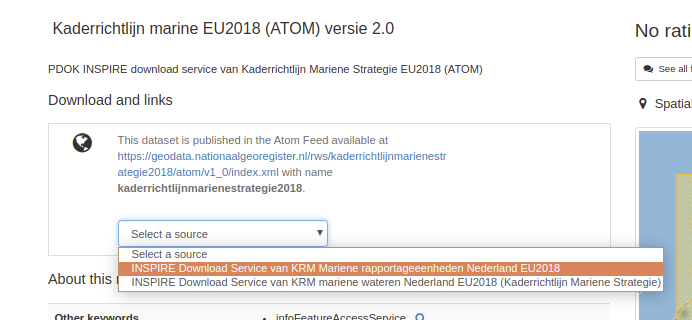
Users can choose a service, the list of datasets available are retrieved and the download links displayed to the user. A dataset feed can have one or more downloads:
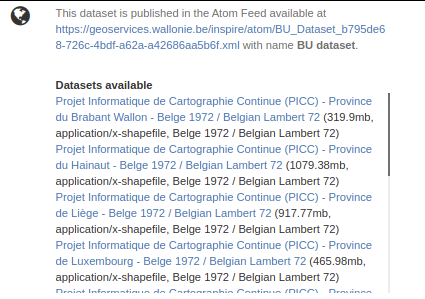
Examples:
The catalog also provides the capability to produce ATOM feeds for services and datasets from metadata records. To enable this, check the ATOM API (see OpenSearch and INSPIRE ATOM). A GML dataset can be exposed using the following encoding in order to be published in a dataset ATOM feed:
<gmd:transferOptions>
   <gmd:MD_DigitalTransferOptions>
      <gmd:unitsOfDistribution>
         <gco:CharacterString>B</gco:CharacterString>
      </gmd:unitsOfDistribution>
      <gmd:transferSize>
         <gco:Real>428973180</gco:Real>
      </gmd:transferSize>
      <gmd:onLine>
         <gmd:CI_OnlineResource>
            <gmd:linkage>
               <gmd:URL>https://download.data.public.lu/resources/inspire-annex-i-theme-addresses-addresses/20191118-115245/ad.address.gml</gmd:URL>
            </gmd:linkage>
            <gmd:protocol>
               <gco:CharacterString>WWW:DOWNLOAD-1.0-http--download</gco:CharacterString>
            </gmd:protocol>
            <gmd:applicationProfile>
               <gco:CharacterString>INSPIRE-Download-Atom</gco:CharacterString>
            </gmd:applicationProfile>
            <gmd:name>
               <gmx:MimeFileType type="application/octet-stream">AD.Address.gml</gmx:MimeFileType>
            </gmd:name>
            <gmd:description>
               <gco:CharacterString></gco:CharacterString>
            </gmd:description>
            <gmd:function>
               <gmd:CI_OnLineFunctionCode codeList="http://standards.iso.org/ittf/PubliclyAvailableStandards/ISO_19139_Schemas/resources/codelist/ML_gmxCodelists.xml#CI_OnLineFunctionCode"
                                          codeListValue="download">download</gmd:CI_OnLineFunctionCode>
            </gmd:function>
         </gmd:CI_OnlineResource>
      </gmd:onLine>
   </gmd:MD_DigitalTransferOptions>
</gmd:transferOptions>
Examples:
- INSPIRE Portal of the Grand-Duchy of Luxembourg / INSPIRE - Annex I Theme Addresses - Addresses
Reference documents: